The Problem: Traffic Drops and Too Many Pages
You open Google Search Console and see it — a clear dip in clicks over the past 60 days. You export your top pages into Google Sheets to start a content audit. Now you have a list of 200, 500, maybe 1,000 URLs that need attention.
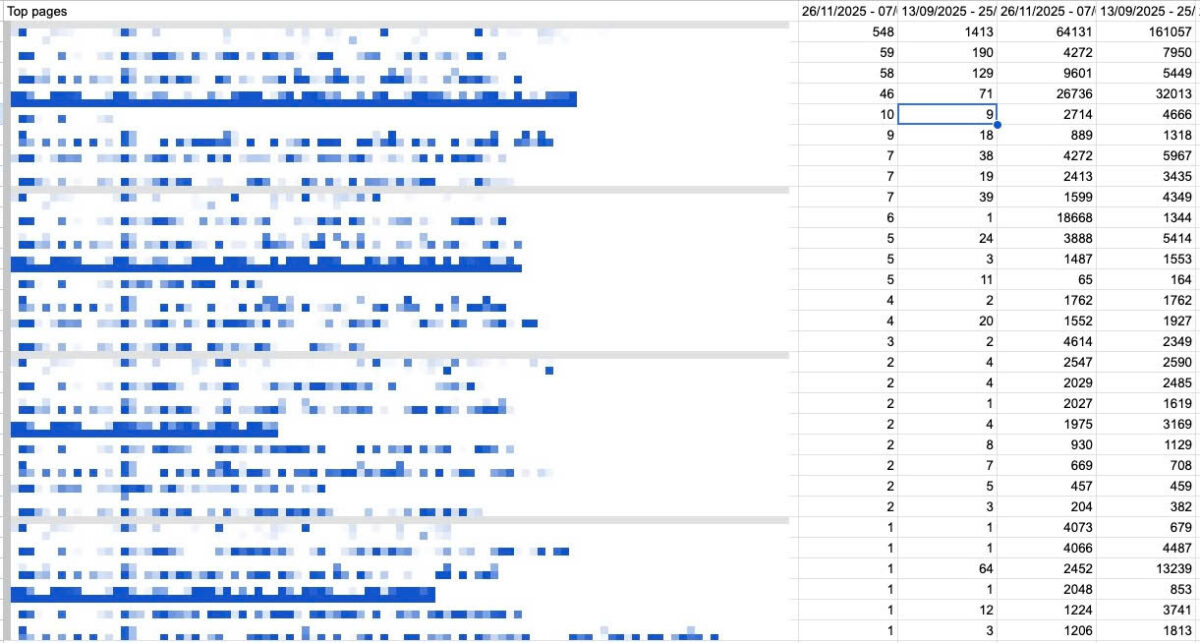
The first question you need to answer: what is the main keyword each page is actually targeting?
Without knowing the keyword, you can’t assess whether the page is ranking for the right term, whether the intent has shifted, or whether a competitor has overtaken you. You need the keyword to do anything meaningful with the audit.
The obvious approach is to go into GSC, filter by each URL, and note the top query. Then cross-check that keyword in SEMrush or Ahrefs to pull volume, keyword difficulty, and CPC — so you can prioritize which pages are worth fixing first versus which ones aren’t worth the effort.
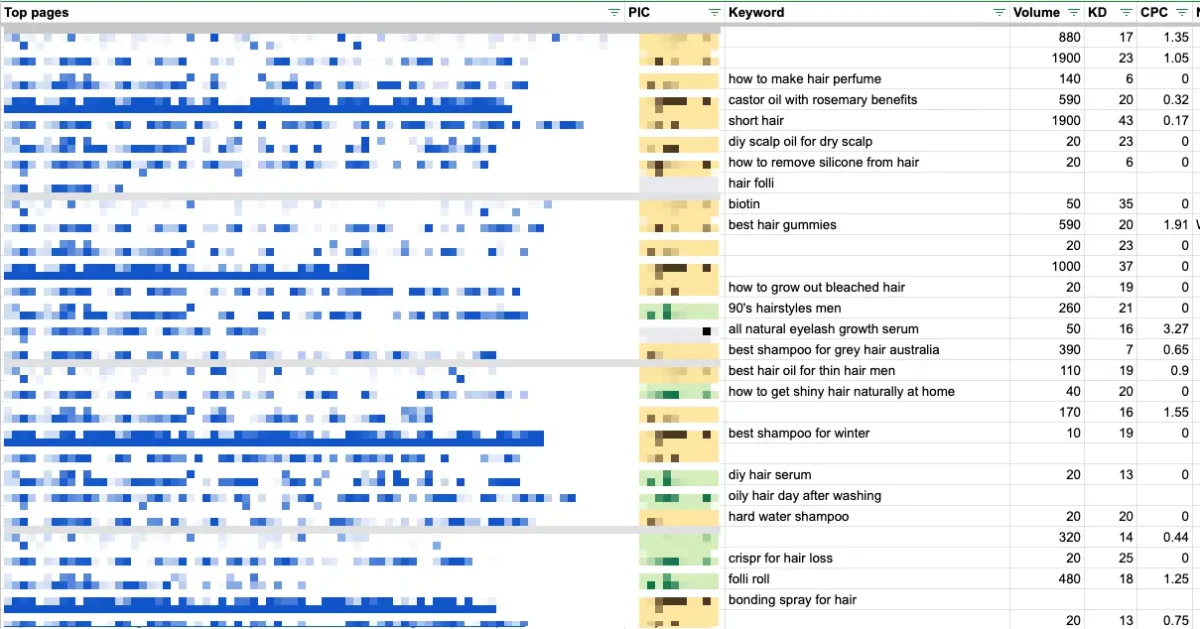
Do that manually for a few hundred pages and you’re looking at hours of tedious, repetitive work.
The Free Workaround: GSC API + VLOOKUP
Here’s the workflow I put together to handle this at scale — without paying for an expensive API.
The idea is straightforward:
- Use Google Apps Script to connect to the GSC API and pull the top ranking query for each URL automatically
- Export a keyword list from SEMrush or Ahrefs manually (or use their bulk analysis tool)
- Use VLOOKUP in Google Sheets to match volume, KD, and CPC back to each keyword
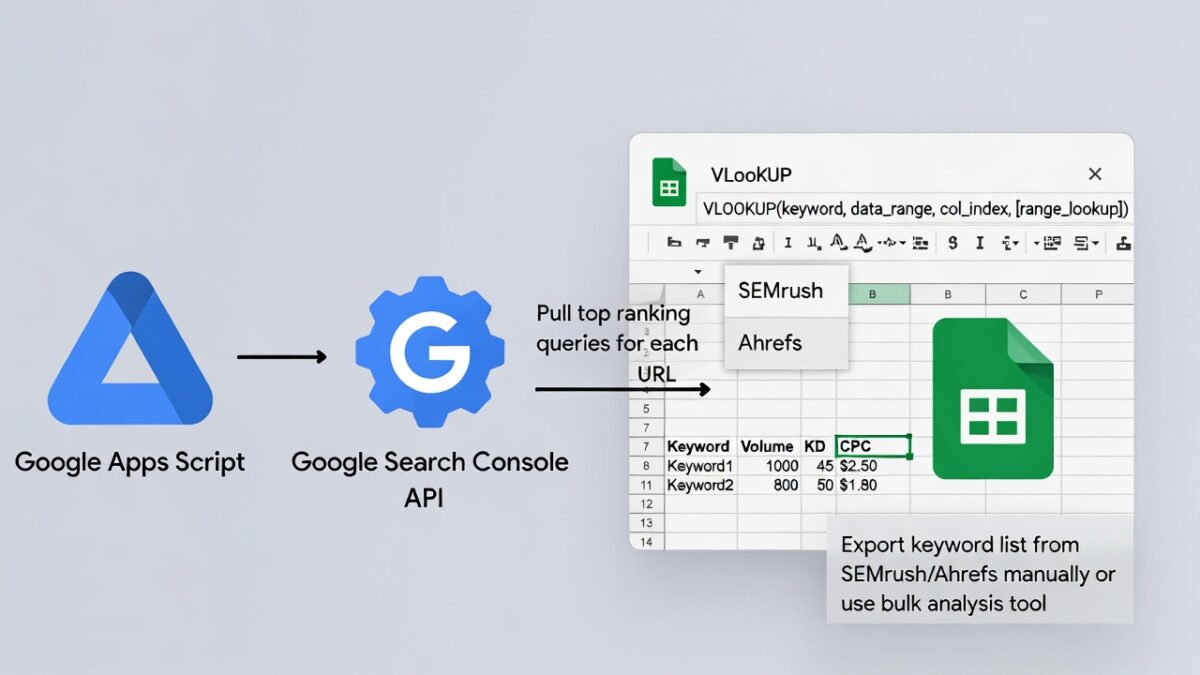
The result is a clean spreadsheet with every page, its main keyword, and the key metrics — ready for prioritization. Total API cost: zero. The GSC API is completely free when you connect it through a Google Cloud free-tier project.
If you have access to SEMrush or Ahrefs API, this whole process becomes even faster. But those APIs cost significantly more, and for most teams the manual export plus VLOOKUP approach works just as well.
Step 1: Pull Top Queries From GSC Using Apps Script
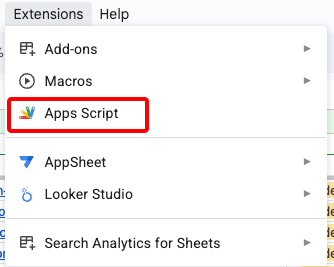
In your Google Sheet, go to Extensions → Apps Script and paste the following script:
function getGSCQueries() {
  const sheet = SpreadsheetApp.getActiveSpreadsheet().getSheetByName('Top Pages');
  const urls = sheet.getRange('A2:A1000').getValues().flat().filter(Boolean);

  const siteUrl = 'sc-domain:yourdomain.com';
  const startDate = '2025-01-01';
  const endDate = '2025-02-10';

  urls.forEach((url, i) => {
    const response = UrlFetchApp.fetch(
      `https://searchconsole.googleapis.com/webmasters/v3/sites/${encodeURIComponent(siteUrl)}/searchAnalytics/query`,
      {
        method: 'post',
        contentType: 'application/json',
        headers: { Authorization: 'Bearer ' + ScriptApp.getOAuthToken() },
        payload: JSON.stringify({
          startDate,
          endDate,
          dimensions: ['query'],
          dimensionFilterGroups: [{
            filters: [{ dimension: 'page', operator: 'equals', expression: url }]
          }],
          rowLimit: 1
        })
      }
    );

    const data = JSON.parse(response.getContentText());
    const topQuery = data.rows?.[0]?.keys?.[0] || '';
    sheet.getRange(i + 2, 3).setValue(topQuery); // writes to column C
  });
}
The script reads URLs from column A starting at row 2, queries GSC for the top ranking query per page, and writes the result to column C on the same row. Update the siteUrl, startDate, endDate, and sheet name to match your setup.
Understanding the column logic: sheet.getRange(i + 2, 3) uses numbers instead of letters — 3 means column C. To write to column D instead, change it to 4. To target a specific tab, getSheetByName(‘Tab Name’) is more reliable than getActiveSheet() so the results always land in the right place regardless of which tab you have open.
Step 2: Authorize the Script
Two things need to be set up before the script will run.
Add the OAuth scopes. In Apps Script, go to Project Settings (gear icon) → enable “Show appsscript.json manifest file” → click the file and replace its contents with:
{
  "timeZone": "America/New_York",
  "dependencies": {},
  "exceptionLogging": "STACKDRIVER",
  "runtimeVersion": "V8",
  "oauthScopes": [
    "https://www.googleapis.com/auth/spreadsheets",
    "https://www.googleapis.com/auth/webmasters.readonly",
    "https://www.googleapis.com/auth/script.external_request"
  ]
}
Enable the Search Console API in Google Cloud. Go to Project Settings in Apps Script and click the GCP project link. Then navigate to APIs & Services → Library, search for “Search Console API”, and click Enable. Or go directly to https://console.cloud.google.com/apis/library/webmasters.googleapis.com.
Wait about 30 seconds after enabling, then click Run. You’ll be prompted to authorize the script — make sure you log in with the Google account that has access to the site in GSC.

Step 3: Pull Metrics From SEMrush and VLOOKUP Them In
Once the script has populated your keyword column, export those keywords into SEMrush using the Bulk Keyword Analysis tool. This gives you a spreadsheet with volume, KD, and CPC for each term.
Then in your audit sheet, use VLOOKUP to pull the metrics back in:
- =VLOOKUP(C2, SEMrush!A:D, 2, FALSE) ← Volume
- =VLOOKUP(C2, SEMrush!A:D, 3, FALSE) ← KD
- =VLOOKUP(C2, SEMrush!A:D, 4, FALSE) ← CPC
Assuming your SEMrush export is on a separate tab with keywords in column A and metrics in columns B, C, D — this fills in the numbers instantly across all rows.
You now have a complete content audit sheet: every URL, its main ranking keyword, and the SEO metrics to help you decide what to prioritize.
Troubleshooting Common Errors
403 “insufficient authentication scopes” — the webmasters.readonly scope is missing from appsscript.json. Add it, then revoke the old app authorization at myaccount.google.com/permissions and re-run to trigger a fresh auth flow.
403 “API has not been used in this project” — the Search Console API hasn’t been enabled in the linked GCP project. Enable it in the Cloud Console as described above.
Empty keyword results — check that the URL format in your sheet exactly matches how GSC records it (with or without trailing slash, http vs https). Even small differences will return no data.
Final Notes
This workflow won’t replace a full SEMrush or Ahrefs API integration — with those, you could automate the metrics pull entirely and skip the manual export step. But for agencies and in-house teams who already have a SEMrush subscription and want a scalable content audit process without additional API costs, this approach covers 90% of the workflow for free.
The GSC API has no usage fees when accessed via a Google Cloud free-tier project, and Apps Script is included with any Google Workspace account. The only cost is a few minutes of setup the first time.
Disclaimer: This article was written with the help of AI. The ideas, experience, and lessons shared here are entirely my own.
Author Profile

- I’m an SEO Manager with 7+ years of experience helping brands grow through data-driven strategies. Passionate about the intersection of search, content, and technology, I blend technical SEO, analytics, and creativity to drive performance and build meaningful digital experiences.
Latest entries
 BlogApril 18, 2026How to Set Up Meta Pixel Events on Haravan via GTM?
 BlogApril 11, 2026How I Use Query Fan-Out to Write Better Content (And Built a Tool for It)
 BlogApril 11, 2026I Managed 40+ SEO Clients. Google Sheets Broke. Here’s the Notion Template I Built to Fix It.
 BlogMarch 29, 2026I Built an Agency Website in Bricks Builder as a Non-Developer. Here’s What Happened.